Migrate Your Actonic Apps from Data Center to Cloud – Step by Step
Make your transition to Atlassian Cloud smooth and secure. Migrating to Cloud doesn’t have to mean starting from scratch. With our guided process, you can bring your Actonic apps and data along – quickly, securely, and without disruption to your teams.
- You have admin access to both your Data Center and Cloud instances. - You’ve updated your Actonic apps to the latest Data Center version. - You’ve backed up all Jira and Confluence data.
Report Builder
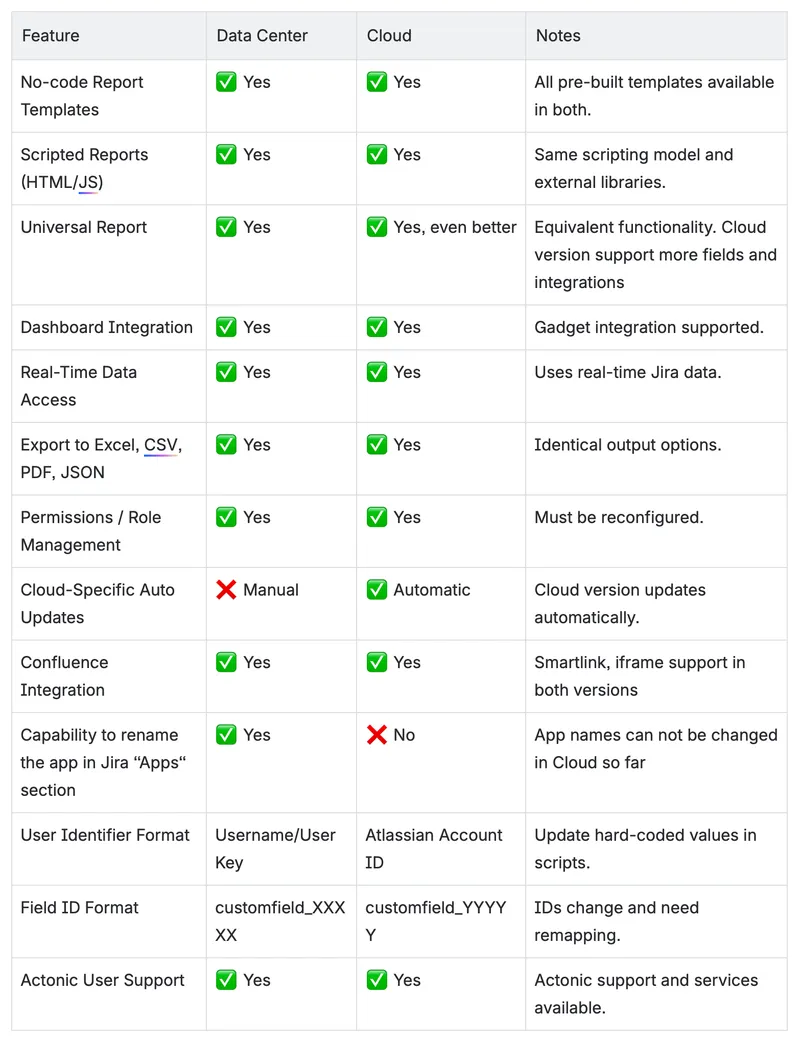
Report Builder is available for both Jira DC and Cloud with nearly full feature parity. The Cloud version includes all key capabilities - the same list of templates available, scripting capabilities, dashboard gadgets integration, Universal report, and exporting options - making it possible to move your reporting suite without compromises.
1
Take Inventory
Make a list of: - Scripted reports with custom code (HTML/JS) - Pre-built template-based reports (Gallery reports) - Dashboards using Report Builder gadgets - Any report with hard-coded field IDs or user identifiers Export screenshots or results for comparison and validation later.
2
Export Custom Reports
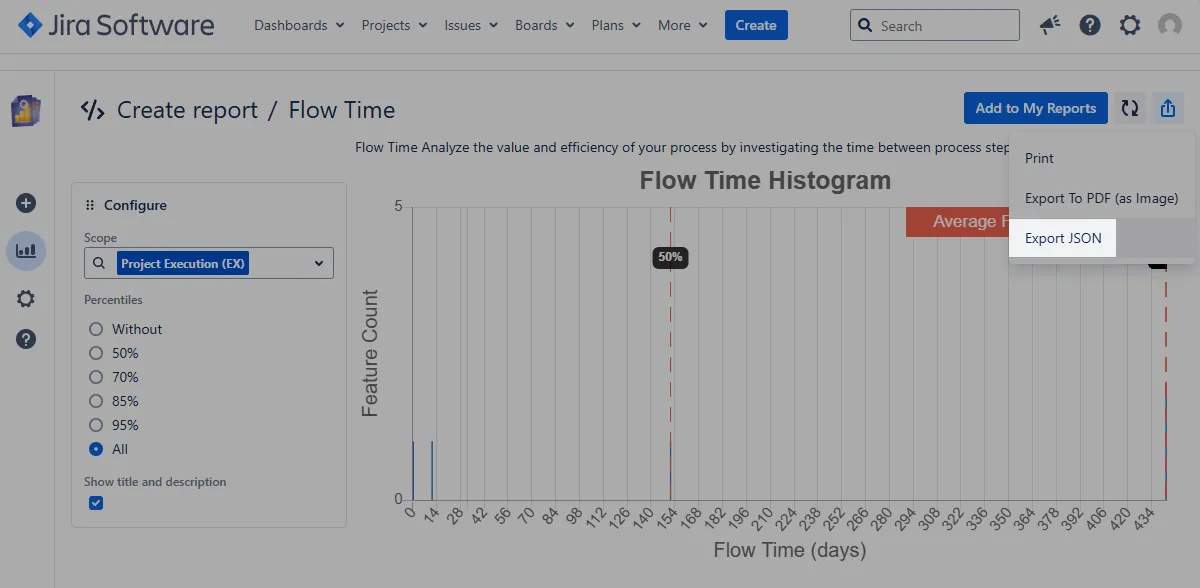
For all reports except the Universal Report, use the built-in export tool: - Open the report on DC. - Click Export JSON – this will include the report’s settings and script. - Copy JSON data into clipboard
3
Import Reports on Cloud
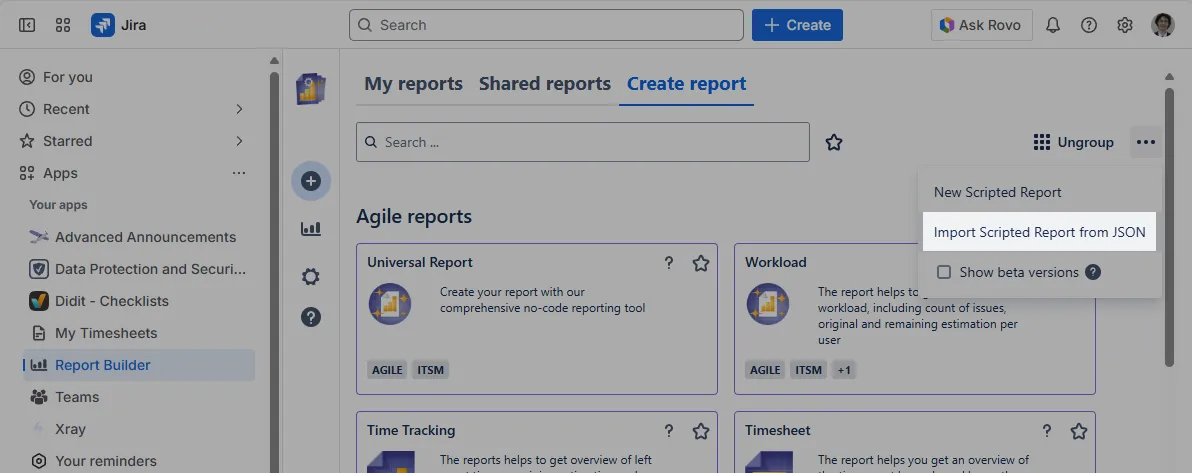
- After moving your projects, issues, and configurations to Jira Cloud, install the Cloud version of Report Builder from the Atlassian Marketplace. Ensure it is licensed and enabled. - In Report Builder Cloud, click Create Report. - Open the three dots menu (•••) in the top-right corner. - Select Import Report. - Upload the exported JSON. - Repeat this for all non-Universal reports.
4
Recreate Universal Reports
Universal Reports cannot be imported. Recreate them manually using equivalent settings and filters.
5
Rebuild Dashboards
Add Report Builder gadgets to Jira dashboards on Cloud and re-link the corresponding reports.
6
Update Report Logic for Cloud Compatibility
-
Custom Field IDs will likely change during the migration – update all references in scripts or filters. - Jira Cloud uses Atlassian Account IDs (e.g. 5b10a2844c20165700ede21g). - Replace any usage of usernames or user keys in your report scripts. - Account IDs can be found in user profile URLs or via the REST API.
Get AI assistanceWe have developed a Custom GPT aimed to help you develop Cloud reports. You could use it to adapt your existing DC reports for Cloud too in case your DC Reports won’t run in Cloud automatically - update entire JSON, or HTML and script separately and ask it to check for Cloud compatibility.
Access Report Builder GPT agent
Data Protection and Security Toolkit
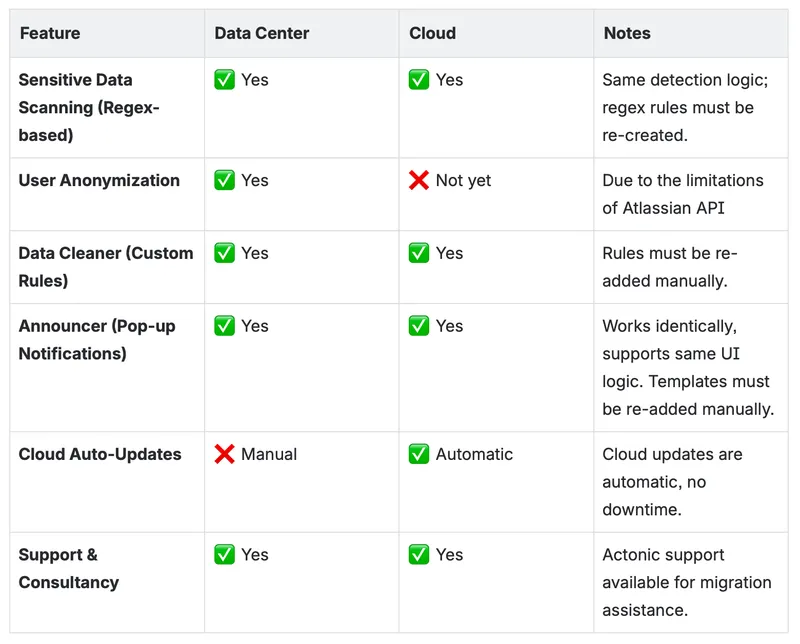
The Data Protection and Security Toolkit (DPT) by Actonic is available for both Jira Data Center and Jira Cloud.
While the Cloud version offers a modern, secure environment and continues evolving rapidly, direct migration of settings or anonymization data from DC to Cloud is not possible due to architectural differences in Atlassian platforms.
However, this guide outlines how to prepare, migrate, and rebuild your compliance setup in Cloud with minimal effort - with Actonic’s team ready to assist every step of the way.
Feature Parity
Why a Direct Migration Is Not Possible
Atlassian Cloud and Data Center have fundamentally different architectures:
- Cloud operates on Atlassian’s multi-tenant API model, not your local DB.
- DPT for Cloud uses Atlassian Connect / Forge frameworks, meaning data, configuration, and scripts can’t be imported directly.
- Therefore, manual recreation of configurations (rules, regex patterns, anonymization mappings) is required.
To ease this, Actonic provides: A Migration Support Session (via Teams)
Pre-Migration Preparation (Data Center)
Make an inventory of: - Sensitive Data Rules (Regex definitions) - Announcer pop-ups and group targets - Any scheduled scans or automated cleaners
Take screenshots or export rule definitions.
Migrating to Data Protection and Security Toolkit (Cloud)
1
Rebuild Rules and Automations
Use your DC inventory as reference:- Add regex-based detection rules in Data Cleaner
- Re-create anonymization templates (Single/Batch)
- Set up Announcer pop-ups for policy acceptance
2
Validate Scanning & Permissions
Run a sample scan and anonymization on a test project. Compare results to your DC instance for parity.
3
Configure Audit & Reports
Set up exports for compliance evidence and enable notifications.
Our experts can assist with:
- Migrating regex rule sets
- Validating anonymization workflows
Timesheet Builder
We currently offer a simple migration, which involves manual steps to recreate the same configuration as in Data Center.
By following the instructions below, you can create the same configuration in the Cloud as in Data Center. We recommend ensuring that you have the same settings in:
- Dates and Periods
- Calendars
- Worklogs (including the General and Worklog Attributes subsections)
- Permissions
- Visibility
The settings on these tabs affect team work, capacity calculations, and future reporting.
Please note that it affects future bookings and statistics. It won’t show you historical results or worklogs.
Migration Steps
1
Open Configuration
Open the application configuration in Cloud and Data Center in two separate browser tabs.- DC: Open Jira and expand the Timesheet Builder drop down in the top menu. Select My Timesheets or Teams.
- Cloud: Open Jira and expand “Apps” in the sidebar. Select My Timesheets or Teams.
- Click on the gear icon to open the configuration.
2
Transfer settings to Cloud
After opening the configuration in the Cloud and Data Center versions, please navigate through the tabs and recreate the same configuration in Cloud.
If you require an advanced migration, including period history, worklog data, and Worklog attributes, please contact us through our support portal. For advanced migration, including time entries, worklog attributes, teams in them, capacity, and progress over time period, a migration tool is required. It can be built to suit your needs, your current Data Center configuration, and the features you use.
Feature Comparison
Timesheet Builder has no functional difference in Data Center and Cloud except the
Secured Worklogs feature
. It is currently available only in Data Center.
If you would like to migrate secured worklogs to cloud, please kindly reach out to us through our
support portal
.
Inline Table Editing
Migration is quick and easy:
Tables that use the Marco feature in data center will be migrated as macro tables and will continue to use the Inline Table Editing macro in the cloud. No further actions or transformations are required before migration.
All tables with the overlay available in data center are standard Confluence tables and will appear as standard Confluence tables in the cloud. No further steps are required to disable the overlay before migration or to convert it to an Inline Table Editing macro.
If users want to use Inline Editing in the cloud for tables that used the overlay feature in Data Center, the tables can be embedded in an Inline Table Editing macro after migration.
Learn how to convert tables into macro in the cloud
1
Please open edit mode of the page. You will see your table as a standard Confluence one.
2
Move your cursor to the place where you would like to put the macro and where you would like to see the table in the future. Click + in the top menu and start typing Inline Table Editing. Select the macro.
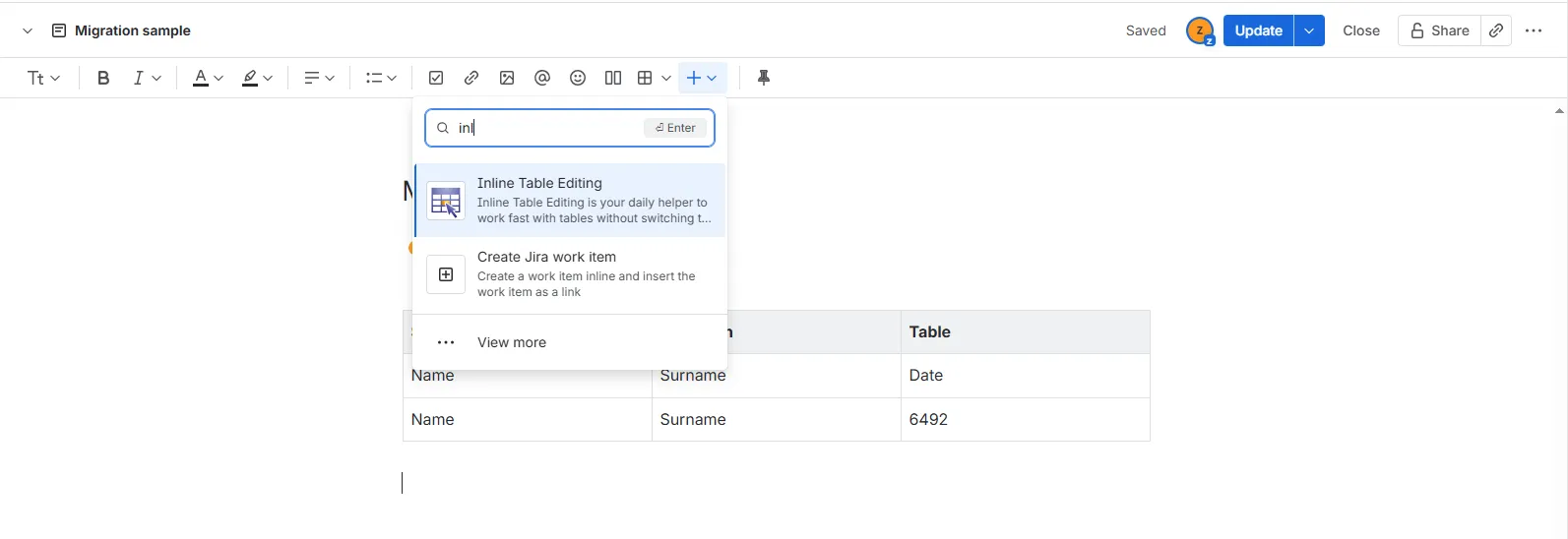
3
Select the whole table and drag and drop it to the macro or use Ctrl+C option to copy the table, put your cursor insight the macro and use Ctrl+V to insert it. Delete the original table located outside the macro. You can also use the keyboard shortcut Ctrl+X to place the table to macro.
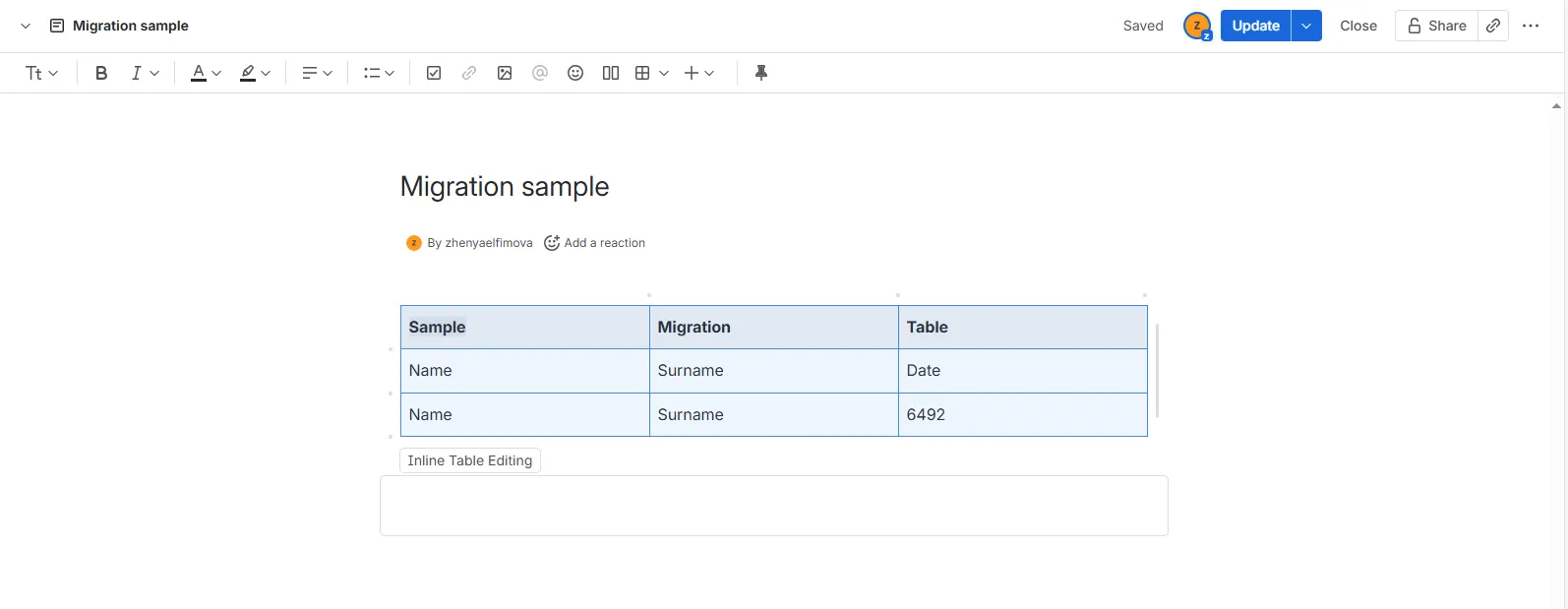
4
Update your page to save the changes.
Feature Comparison
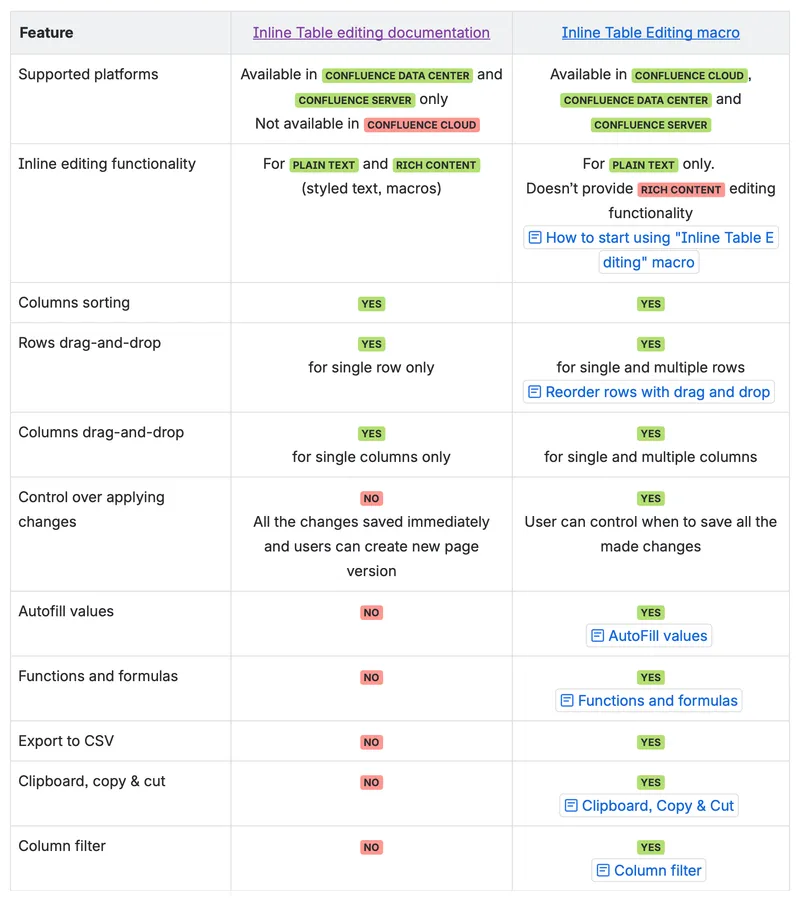
Due to Atlassian’s cloud limitations, we unfortunately don’t support the overlay feature there. Only macro functionality is available. However, macros offer more functionality and allow full freedom of inline editing. Macro functionality is no different in the cloud and DC.
Frequently Asked Questions
Can I migrate all Actonic apps from Data Center to Cloud?
Can I migrate all Actonic apps from Data Center to Cloud?
All Actonic apps covered on this page have Cloud equivalents. However, the migration approach differs per app:
- Report Builder: Most reports can be exported and imported. Universal Reports must be recreated manually.
- Data Protection and Security Toolkit: Settings must be rebuilt due to platform differences.
- Timesheet Builder: Configuration can be recreated manually; historical data requires a custom migration.
- Inline Table Editing: Works out of the box after migration, with minor adjustments.
Will I lose any data during the migration?
Will I lose any data during the migration?
No data is lost as long as you follow Atlassian’s recommended Jira and Confluence migration process and back up your Data Center instance beforehand. App-specific configurations may need to be recreated, but your core Jira and Confluence data remains intact.
Why can’t some app configurations be migrated automatically?
Why can’t some app configurations be migrated automatically?
Atlassian Cloud and Data Center have fundamentally different architectures. Cloud apps run in a secure, multi-tenant environment and do not have direct database access. This means certain settings, scripts, and stored data cannot be transferred automatically and must be rebuilt using Cloud-compatible APIs.
How much effort is required for Report Builder migration?
How much effort is required for Report Builder migration?
For most customers, the effort is moderate:
- Template-based and scripted reports can be exported and imported via JSON.
- Dashboards need to be rebuilt manually.
- Scripts may require updates for Cloud-specific IDs and user account handling. We recommend testing reports in a staging Cloud environment before going live.
Can AI assist me to perform migration steps more effectively?
Can AI assist me to perform migration steps more effectively?
Yes. For Report Builder, you can use our custom ChatGPT agent to transition your scripted DC reports to Cloud by adjusting JavaScript code or even the entire JSON at once.
If you still need assistance, please contact support.
Can you help adapt my custom scripts for Cloud?
Can you help adapt my custom scripts for Cloud?
Yes. We review your existing scripts, update them for Cloud compatibility (Account IDs, APIs, permissions), and refactor logic where needed. For complex use cases, we can also implement custom Cloud apps or Forge-based extensions. You can also use our custom GPT agent to get help.
Is historical data available after migrating Timesheet Builder?
Is historical data available after migrating Timesheet Builder?
Manual migration recreates configuration only and affects future bookings. Historical worklogs, attributes, and period data require a dedicated migration tool. If this is important for you, please contact us to discuss a tailored migration approach.
Are there features that exist only in Data Center?
Are there features that exist only in Data Center?
Yes. Some features, such as Secured Worklogs in Timesheet Builder, are currently available only in Data Center. We’ll help you assess alternatives or redesign workflows where Cloud limitations apply.
How long does a typical migration take?
How long does a typical migration take?
The timeline depends on:
- Number of apps in use
- Complexity of reports, scripts, and rules
- Whether historical data migration is required Smaller setups can be migrated in days, while complex environments may take several weeks including testing and validation.
Can we migrate in phases or test before going live?
Can we migrate in phases or test before going live?
Absolutely. We strongly recommend a phased approach:
- Test migration in a Cloud staging instance
- Validate reports, rules, and permissions
- Roll out to production once parity is confirmed This minimizes risk and downtime.
What support options are available during migration?
What support options are available during migration?
Actonic offers guided migration sessions, hands-on support, and custom tooling where needed. Our experts can help you plan, execute, validate, and optimize your move to Atlassian Cloud. Raise a ticket in our support portal to submit your request.